Controls
This page covers the basic usage of the app and keyboard shortcuts.
Basic usage
Access Page (Grid)
Click a square in the “Access page” panel to simulate a memory access to the corresponding page.
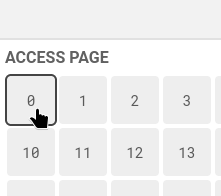
The page will change color based on it’s new state according to the selected algorithm.
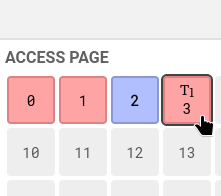
The screenshot above shows ARC after clicking 0, 1, 2, 2, 3. Hovering over 3 reveals the text “T1”, which is the page’s state in ARC.
You can also drag your cursor across pages to do a scan.
Algorithms Panel
The algorithms panel shows the state of your algorithm. Each box in this section panel show all pages the selected algorithm is keeping track of.
You can also click pages in the algorithms panel. Continuing from the example above, if we click page 3, we see it changes state to “T2”
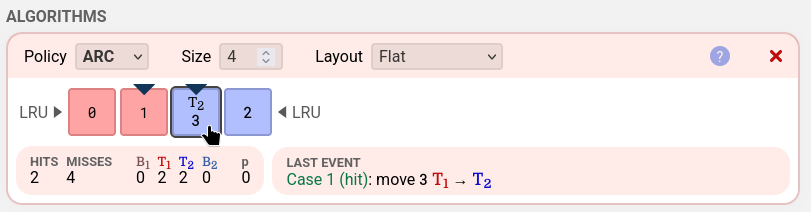
The top of each box offers 5 operations.

From left to right, they are:
- Policy: Choose between the four algorithms to visualize.
- Size: Enter the maximum number of pages the algorithm is allowed to keep loaded using the size input.
- Layout: The layout does not change anything about the algorithm, just how the algorithm’s state is visualized. You can find more information about the algorithms and the available layouts for each algorithm by accessing the documentation for the corresponding algorithm.
- “?” button: The “?” button opens the documentation in a different tab for the corresponding algorithm.
- “x” button: Remove the algorithm. Note that you keep your access history, so remaking the algorithm restores it’s state. You can also press Ctrl-Z or Cmd-Z (MacOS) to undo a removal.
Finally, the bottom of each box displays the stats (including hits, misses, and algorithm-specific details) and text explaining what the last event was.

The text is in the format “[case]: [result]”. The case portion is in green.
A list of every case PageRVis recognizes is documented in the algorithm-specific documentation accessible by the “?” button.
You can add multiple algorithms to visualize at once by pressing the “Add Algorithm” button.
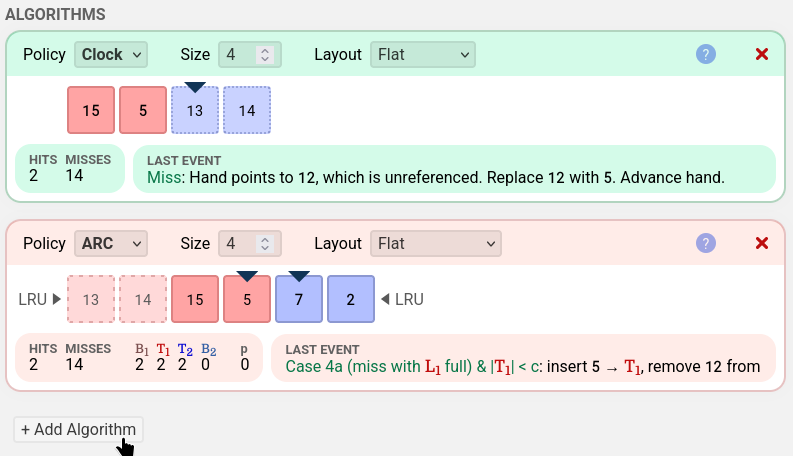
Every page access is sent to all algorithms at the same time, which is useful for comparing algorithms.
Sequence Panel
The sequence panel shows the history of all pages you’ve simulated access to.
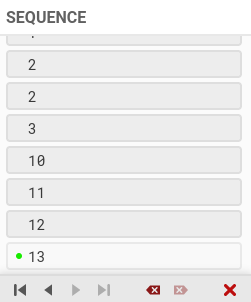
There are 7 buttons on the bottom.
From left to right, they are:
- Jump to start: view the initial empty state of all algorithms
- Step back: view the state one step before
- Step forward: view the state one step after
- Jump to end: view the state of all algorithms after every access in the list
- Delete current: removes the current access. It’s similar to step back, but the access is removed from the list, altering history.
- Delete after current: removes the access after the current access. This button alters the future.
- Clear sequence: clears the list, starting fresh.
The green circle shows the last access that each cache processed.
Note that when you access a new page when you are in the middle of the access list, you will be inserting page access in the middle of the list as well!
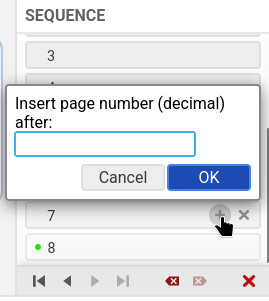
Hovering over an access entry gives options to insert a new entry after that entry (if shift is held, inserts before the entry.)
Resizing Panels
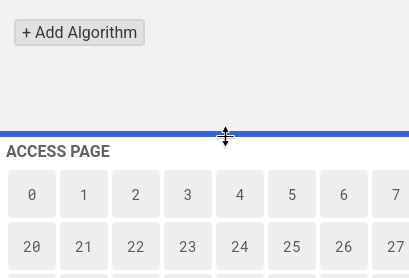
If the PageRVis window has width > 620px and height > 600px, you can resize both the Access Page and Sequence panels to fit your preferences. Making the panels small enough will hide the panels.
Keyboard Shortcuts
Keyboard shortcuts are optional, but may improve your experience.
| Action | Shortcut |
|---|---|
| Insert custom page | Enter or Any number1 |
| Step back | Left arrow |
| Step forward | Right arrow |
| Step to start | Home or Ctrl-left |
| Step to end | End or Ctrl-right |
| Remove current access | Backspace |
| Remove next access | Delete |
| Clear sequence | Ctrl/Cmd-Delete2 |
| Undo | Ctrl/Cmd-Z |
| Redo | Ctrl/Cmd-Shift-Z |